Read web pages, PDFs, and papers
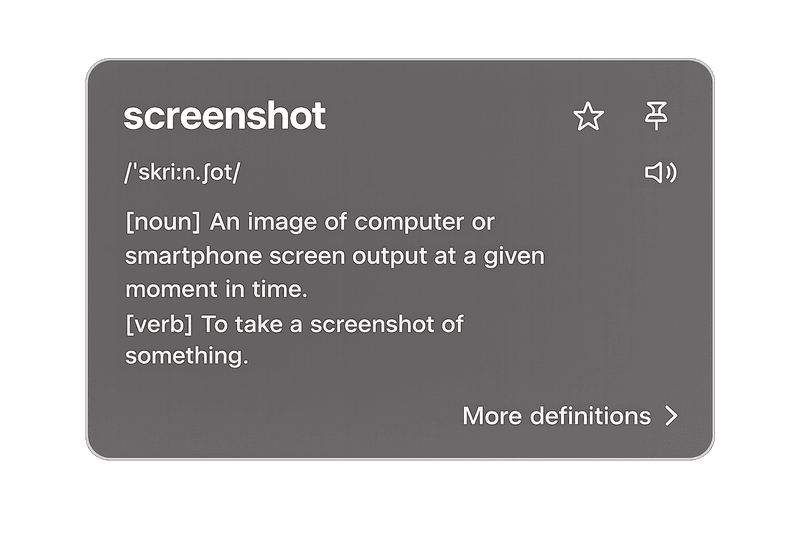
Place the pointer over a word or select text to see the meaning beside the material you are reading.
Look up English and Chinese text in Mac apps. Save words to review on iPhone and iPad.
Mac + iPhone · English narration and subtitles · iOS Simulator footage
Playing this video connects to YouTube.
Watch on YouTubeLook up text as you read, then save useful words for review.
Look up text across Mac apps
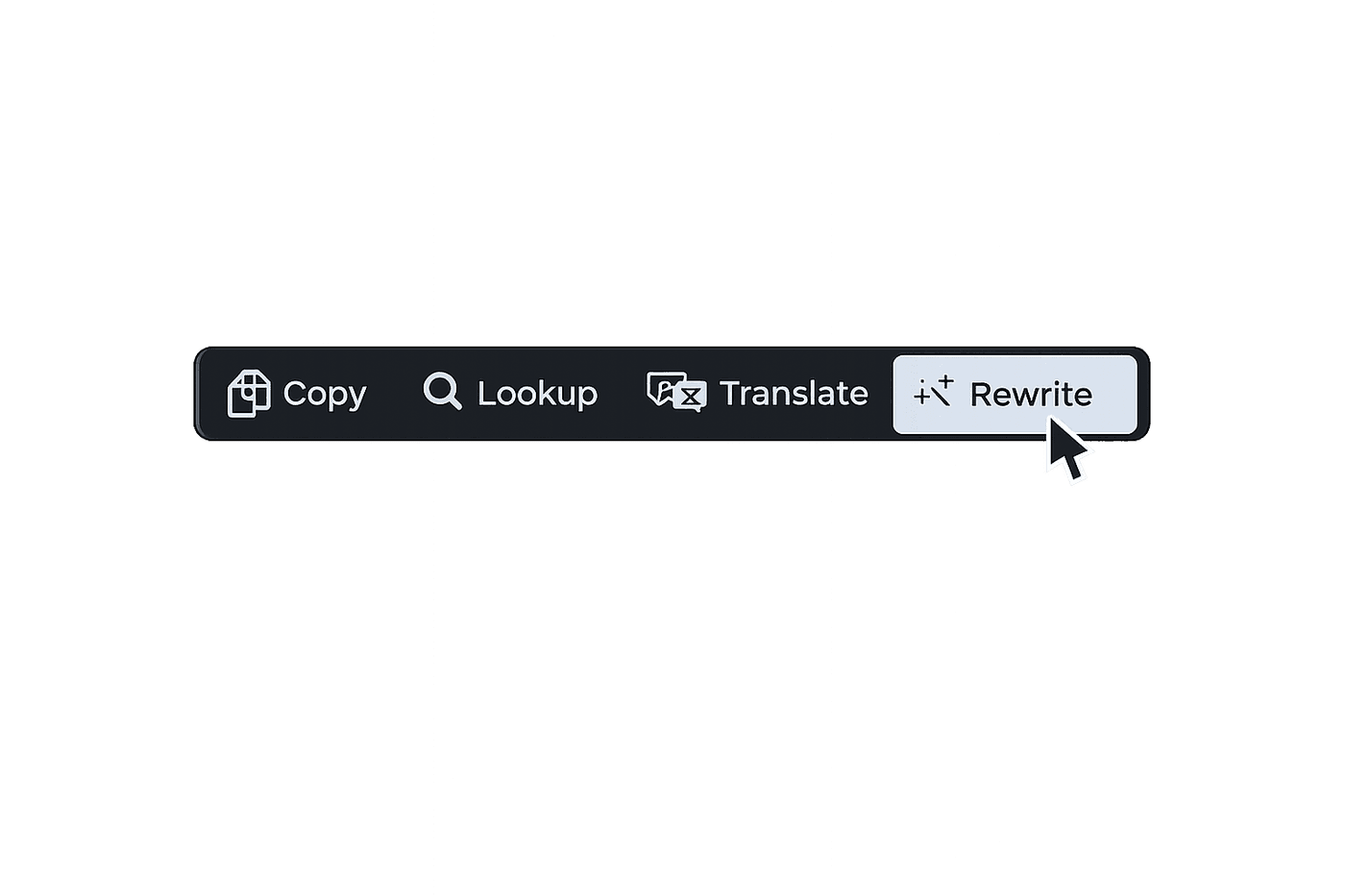
Use hover, selection, Services, shortcuts, double-copy, or OCR in web pages, PDFs, screenshots, subtitles, and other apps.
Use selection or OCR in the current app
Select text for lookup, translation, or rewriting. Use OCR for screenshots, subtitles, images, and on-screen text.
Add AI explanations and rewriting
Use your own OpenAI API key to learn English with AI or learn Chinese with AI from the text you select.
Turn searched words into stories and review
Turn searched words into stories to learn English in daily life, learn Chinese, learn Mandarin, or learn Mandarin Chinese.
Continue reading and writing
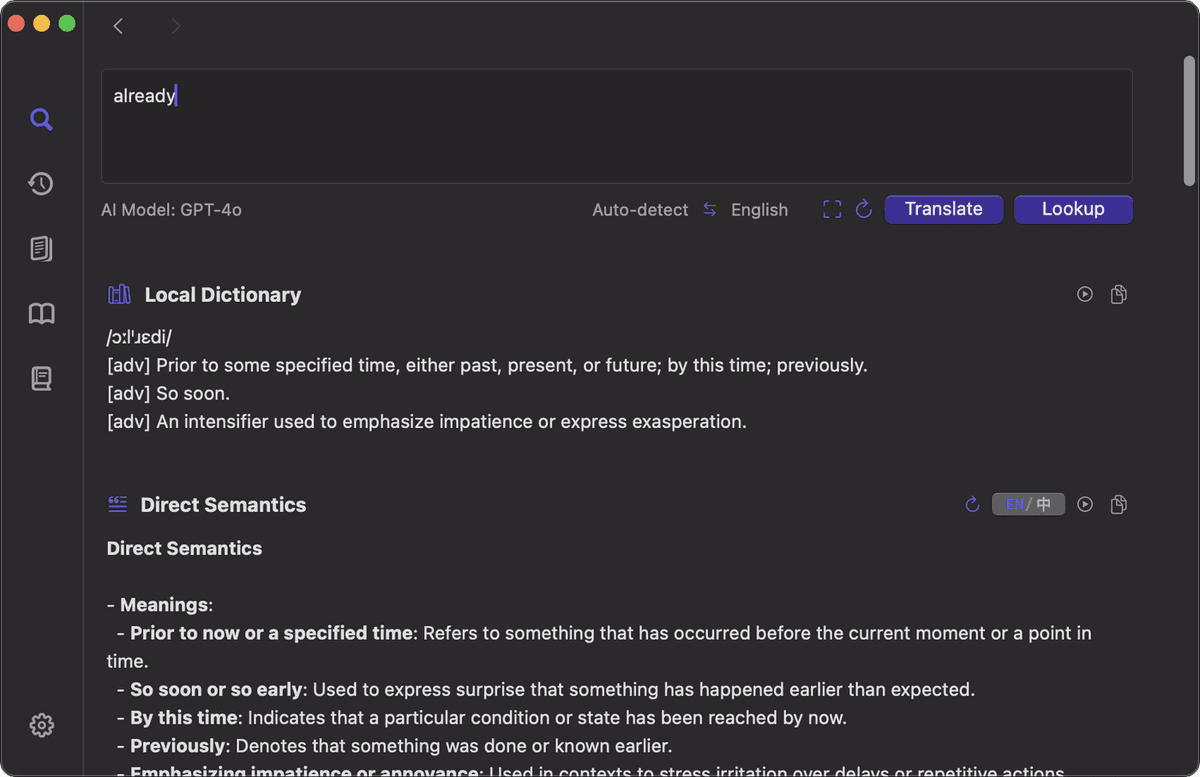
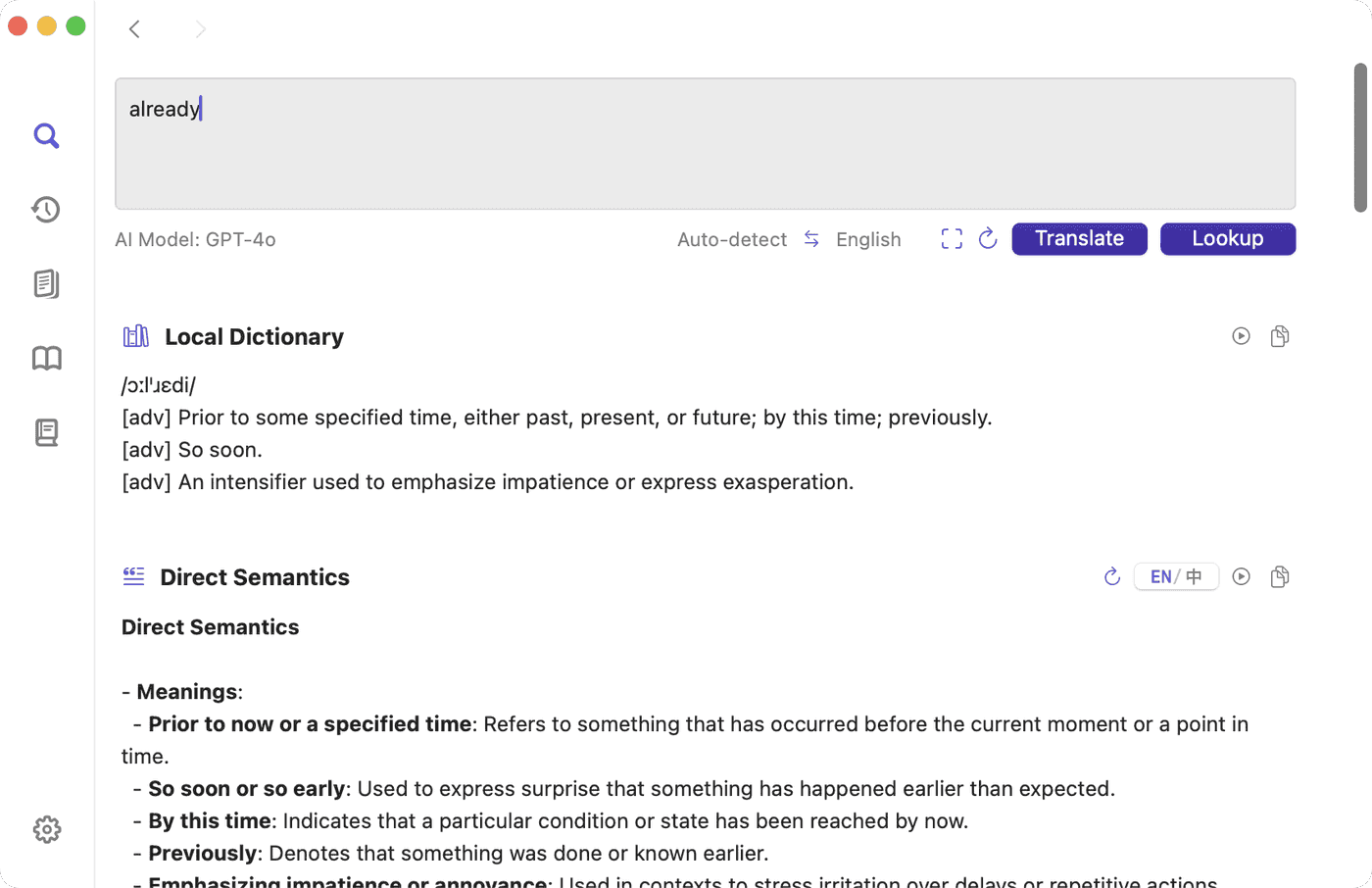
Dictionary opens lookup results beside your text so you can keep reading or writing in the same app.
Start a lookup on Mac: Look up English and Chinese text with hover selection Services shortcuts or OCR inside Mac apps.
Explain or rewrite with AI: Use your own OpenAI API key to explain meaning, context, usage, cultural background, etymology, similar expressions, or rewrite selected text.
Open query history: See searched words on Mac, iPhone, and iPad and continue each word in stories or review.
Review words and stories: Review searched words, query history, and daily stories on a forgetting-curve schedule.
Look up words from web pages, PDFs, papers, screenshots, subtitles, images, and writing, then save them for review.
Place the pointer over a word or select text to see the meaning beside the material you are reading.
Select a screen area with OCR, extract the text, and open it for lookup or translation.
Keep today’s searched words in history, turn them into a story, and add them to scheduled review.
Look up on Mac, review on iPhone and iPad
Query shows lookup history, Stories turns searched words into daily reading, Memory lists due reviews, and Sync shows the current synchronization status.
Words from web pages, PDFs, papers, screenshots, subtitles, images, and writing enter query history and scheduled review.
Dictionary groups today’s searched words into readable context for the next review.
Query history, daily stories, due reviews, and sync status are available on iPhone and iPad.
Dictionary is free to use. AI features use your own OpenAI API key, and OpenAI bills your account for actual API usage.
Dictionary is free to use. AI features use your own OpenAI API key, and OpenAI bills your account for actual API usage.
Set up API keySelect text and run lookup, translation, or rewriting inside the current app. Dictionary shows the result so you can continue reading or writing in the same place.
Start OCR capture and select the screen area. Dictionary extracts text from screenshots, subtitles, images, and on-screen text, then opens it for lookup or translation.
Place the pointer over a word or sentence. Dictionary shows its meaning near the text so you can keep reading in the current app.
Dictionary keeps a lightweight lookup helper available in the background, ready for hover, selection, OCR, and shortcut actions.
Hover, selection, OCR, and query history work directly. Add your own OpenAI API key to use AI explanations and rewriting.
Accessibility enables Hover Lookup, Selection Popup, and Quick Translate. Screen Recording enables hover capture and OCR. Input Monitoring enables hover triggered with the Option key.
Yes. Dictionary uses local English-Chinese resources for offline lookup on Mac, keeps useful words in scheduled review, and automatically syncs lookup history and review items to iPhone and iPad.
Open setup, permissions, popup lookup, OCR translation, release notes, and support.